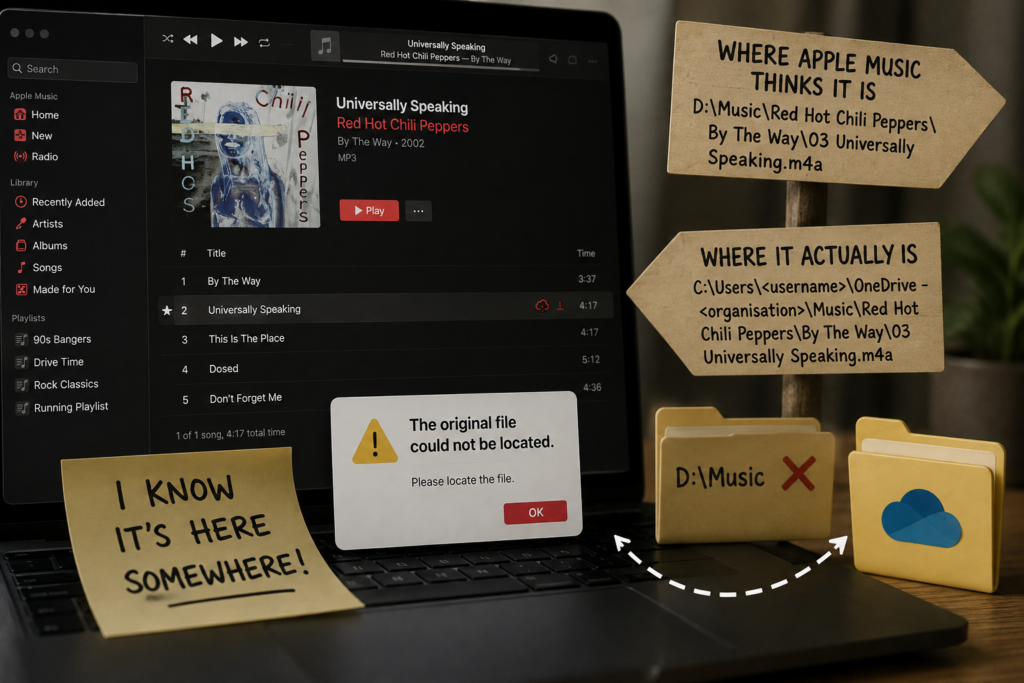
I had one of those wonderfully stupid IT problems this week where everything looked completely fine, but absolutely nothing worked.
My Windows 11 machine has a fairly substantial Apple Music library – approaching 20,000 items – and I use iCloud Music Library so that everything follows me across my devices.
Most of the actual music files are local, though, and are stored in my OneDrive-synchronised Music folder.
I noticed recently that some of my local tracks simply wouldn’t play.
Not an error. Not a codec problem. Not even a helpful “file not found” message.
I’d double-click a track and…
Nothing.
Naturally, my first assumption was that Apple Music had decided to have one of its occasional Windows moments.
I’d already tried clearing the AppData folders, killing the Apple Music processes and repairing the Windows app.
Nothing.
Then I noticed something interesting.
Some newer local tracks played perfectly.
Older tracks didn’t.
And if I right-clicked one of the broken tracks and selected Show in Explorer, absolutely nothing happened.
That seemed like a useful clue.
Then I remembered what I’d done
I’d rebuilt this PC back in December 2024.
New SSD. Fresh Windows install. The whole nine yards.
At some point afterwards, I’d also moved my music into OneDrive so it would be backed up and available across my machines.
Before that, the music had lived on a separate drive:
D:\Music\Red Hot Chili Peppers\By The Way\03 Universally Speaking.m4aIt now lives here:
C:\Users\<username>\OneDrive - <organisation>\Music\Red Hot Chili Peppers\By The Way\03 Universally Speaking.m4aSame file. Same folder structure. Completely different path.
Apple Music, however, was still looking for the old one.
That explained why newer files worked: they’d been added after the move and therefore had the correct path from the outset.
But naturally, it wasn’t quite that simple
I found another example where Apple Music thought Charlemagne by Blossoms was here:
C:\Users\<username>\OneDrive - <organisation>\Music\
Apple Music\Media\Music\Blossoms\Blossoms\Charlemagne.m4a
But the actual file was here:
C:\Users\<username>\OneDrive - <organisation>\Music\
Blossoms\Blossoms\Charlemagne.m4a
So I didn’t just have one stale path to deal with. I had apparently managed to accumulate multiple generations of Apple Music’s idea of where my music ought to be.
The obvious solution
Apple Music does have a Locate option.
And it works.
I located one of the missing tracks and Apple Music successfully found the file. Interestingly, it also updated the locations of the other tracks in that album.
Unfortunately, not all of them started playing.
And with a library approaching 20,000 items, manually going through albums and locating files one at a time wasn’t exactly my idea of a fun Sunday afternoon.
I really didn’t want to delete the library and start again either. I use iCloud Music Library, and the prospect of asking Apple Music to reconsider the existence of 20,000 tracks was… unappealing.
So naturally, I started looking for the database.
Surely I can just edit the database?
There is a Library.musicdb file inside the Apple Music library, and my immediate thought was:
“Excellent. I’ll just update the paths in SQLite.”
Except Apple, being Apple, has encrypted the database.
So DB Browser for SQLite looked at me, asked for a passphrase, and I politely closed it.
Fair enough.
At this point I could have gone down the rabbit hole of reverse engineering Apple’s database format.
I decided that was perhaps slightly excessive for fixing my music player.
So I stopped trying to fix Apple Music
Instead, I decided to fix Windows.
If Apple Music insists on looking for:
D:\Music\...then why not make D:\Music exist?
Enter the humble Windows junction.
I created:
mklink /J D:\Music "C:\Users\<username>\OneDrive - <organisation>\Music"Now when Apple Music asks Windows for:
D:\Music\Red Hot Chili Peppers\By The Way\03 Universally Speaking.m4aWindows transparently redirects it to:
C:\Users\<username>\OneDrive - <organisation>\Music\Red Hot Chili Peppers\By The Way\03 Universally Speaking.m4aApple Music doesn’t know or care.
And for the other, slightly more bizarre path, I created a junction for:
Music\Apple Music\Media\Musicpointing back at the real Music folder.
And…
It worked.
Suddenly the previously broken tracks were playing again.
No library rebuild.
No re-import.
No iCloud drama.
No manually locating thousands of files.
Just a couple of filesystem junctions making Windows lie convincingly enough to Apple Music.
While I was there…
Having discovered that Apple Music had previously been quite enthusiastic about creating its own:
Music\Apple Music\Media\Musichierarchy, I took the opportunity to look at the Files settings.
I’ve left Keep Media folder organised enabled, but turned Copy files to Media folder when adding to library off.
The Media folder itself is now my OneDrive-backed Music folder.
That should mean that if I rip another CD or add music in future, Apple Music isn’t going to quietly create another copy of everything underneath its own Apple Music\Media hierarchy.
The existing library isn’t magically fixed by changing those settings – the junctions are still doing that work – but at least I’m less likely to create another variation of the same problem.
The takeaway
The interesting thing here isn’t really that Apple Music has a bug.
It’s that a modern music application is still quite happy to maintain a library containing absolute filesystem paths, and there doesn’t appear to be an elegant way of saying:
“Oh, the entire folder moved? No worries, I’ll update the root.”
There is a Locate function, and it does work. But when you’re dealing with nearly 20,000 items, manually locating things isn’t exactly an attractive proposition.
And while I’m sure there’s probably a much more “proper” way of rebuilding or migrating the library, I wasn’t particularly keen on finding out what happens to an iCloud-synchronised library when you throw it all away and start again.
So, for now, I’ve left the junctions in place.
It’s not the prettiest solution in the world, and eventually I’d quite like to properly clean up the library rather than maintain a couple of filesystem aliases purely to keep Apple Music happy.
But for a quick fix?
It’ll do.
Sometimes the best way to solve a software problem isn’t to fix the software.
Sometimes you just lie to it at the filesystem level until it shuts up.
And honestly, that’s probably the most Windows solution imaginable.